
Intro
This post is my attempt to systematize every method I know for migrating data for SQL Server. I'll focus on on-premise SQL Server here, and only add a little personal experience on the cloud versions.
The solutions below are probably still incomplete — feel free to add your own suggestions in the comments.
Before migrating a database
There are a few things you'll need to know before migrating an SQL Server database. Here are the questions you'll need to answer for your case:
- Does the migration process require Zero Downtime for the system?
=> In plain terms: when switching the database endpoint to the new database, does the system go "dead"? Of course, data must remain consistent with no loss. For systems that don't require a high SLA, or ones with extremely low usage (~0) in the middle of the night, migrating with downtime is perfectly acceptable. We shouldn't force through a Zero Downtime approach if it costs a lot of effort and money for no real benefit.
This is an important question you have to answer to pick the right migration approach. In the next section I'll split migration approaches into 2 groups: Zero Downtime and With Downtime.
- What actually needs to be migrated?
=> For SQL Server, migration usually involves quite a lot of info to move: schema (tables, indexes...), data (the rows in the tables), stored procedures, views, and database users. You need to clarify with the dev team or the manager exactly what needs to be migrated. In plenty of cases you only need to migrate the schema and data, or some data that's no longer used doesn't need to be migrated at all.
This question matters just as much — it can save you a lot of time.
In this post I'll use a few English terms for clarity:
- Migrate: moving data in general
- Source database: the source SQL Server whose data needs to be copied
- Destination database: the target SQL Server the data gets copied to
Zero-downtime migration solutions
In most cases, migrating without downtime is always preferred since it has more advantages than migrating with downtime.
Replication feature
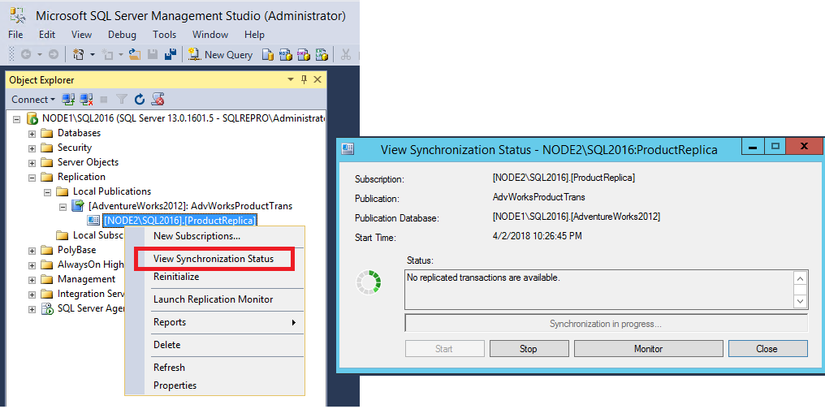
This is a feature built into SQL Server that lets you configure the Destination SQL Server as a Subscriber, which tracks and copies data changes from the Source Database (Publisher). There's also a third role, the Distributor, sitting between Publisher and Subscriber, though in most cases I've seen the Distributor installed directly on the Source Database, running on the same instance as the Publisher.
Microsoft's tutorial: learn.microsoft.com
How it works:
- Once you configure a Publication for a database, the Source database creates a snapshot containing the database's current data.
- This snapshot gets pushed to a shared folder. This shared folder needs to be readable from both databases — for Azure SQL Managed Instance, you can configure a File Share to store this snapshot file.
- Next, once you configure a Subscription for the destination database, this database pulls the snapshot from the shared folder to initialize the schema and initial data.
- Once initialized, the Destination database continuously monitors and pulls transaction logs (log files recording SQL statements applied on SQL Server) from the Source Database and applies those changes to its own database.
Pros:
- Data reflects to the destination database very quickly (a few seconds)
- Fairly easy to set up with Server Management Studio (SSMS)
- Can migrate all types of data: schema, data, stored procedures, views, users.
- Can detect schema changes.
- The initial snapshot creation takes a while even for small databases (~20 minutes)
Cons:
- The 2 databases need network connectivity to each other (since they talk directly to exchange transaction log files)
- To replicate schema changes, you need to recreate the snapshot manually
Replication via Full Backup and transaction log files
First you need to understand 2 types of files in SQL Server — backup files and transaction log files:
- Full Backup File: This is a data backup of a database at a specific point in time. Backups protect data, letting you restore the database if there's an incident like a system failure, data loss, or an external attack. Full backup files usually have a .bak extension
- Transaction Log File: This is a file recording every change happening in the database, including transactions like INSERT, UPDATE, and DELETE. Every transaction in SQL Server gets recorded in the log file before being executed, to guarantee data integrity. Transaction log files usually have a .trn extension
There's also a Differential backup file. Read more here: learn.microsoft.com
With these 2 file types you can use cloud services like GCP's Database Migration Service to copy data to Cloud SQL Server. Or you can write a script to periodically back up from the source database and restore to the destination database.
Similar to the replication method above, but with this method you have to do it by hand.
How it works:
- You perform an initial Full Backup from the source database using the command
BACKUP DATABASE SQLTestDB TO DISK = 'c:\tmp\SQLTestDB.bak' - Restore this to the destination database using the command
RESTORE DATABASE SQLTestDB FROM DISK = 'c:\tmp\SQLTestDB.bak'; - Periodically grab the transaction log file with the command
BACKUP LOG SQLTestDB TO ...; - Periodically restore this transaction log file to the destination database with the command
RESTORE LOG SQLTestDB FROM ... WITH RECOVERY;
Pros:
- With the ability to back up to S3 using
TO URL, it's fairly easy to ship log files over to the destination database. - Easy to copy data over to the destination database via periodic scripts
- Keeping transaction files lets you restore the database to any point in time
Cons:
- You'll have to turn off encryption if the database currently has encryption enabled
- Some cloud SQL Server services don't allow running the
BACKUP DATABASEcommand manually (e.g. Azure Managed Instance, Azure SQL Database)
Always On Availability Group
Microsoft document: learn.microsoft.com
I haven't had a chance to try this one yet, but it looks quite good. Basically, once you create an Availability Group, the Destination server operates as a replica. When an incident occurs, it automatically fails over to the replica server.
Change Data Capture (CDC) and Change Tracking
Change Data Capture (CDC) and Change Tracking essentially work the same way, both capturing changes in a table and storing them as records so they can be replicated to the destination database. However, Change Tracking is a simpler version of the Change Data Capture feature, meant for simpler purposes.
Change Tracking only records 3 actions — U (Update), I (Insert), D (Delete) — and the column that changed, not the data before the change. Change Data Capture records more fields with detailed timing along with the pre-change version of the data.
The image below shows a change captured via the Change Data Capture feature

To enable the CDC feature for a table, use the command:
-- Enable CDC at the database level
USE master;
GO
EXEC sys.sp_cdc_enable_db;
GO

-- Enable CDC on a specific table (replace 'SchemaName', 'TableName', and 'PrimaryKeyColumn' as appropriate)
USE YourDatabaseName;
GO
EXEC sys.sp_cdc_enable_table
    @source_schema = N'SchemaName',
    @source_name = N'TableName',
    @role_name = NULL, -- Use NULL if you don't need role-based access
    @filegroup_name = N'cdc';
GO
The image below shows a change captured via the Change Tracking feature
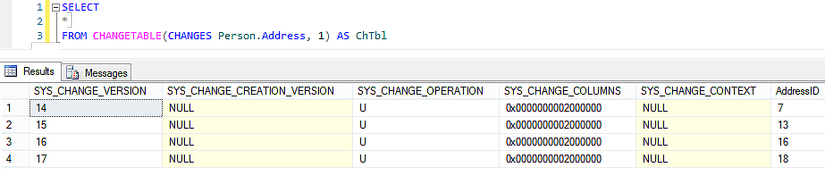
To enable Change Tracking for a table, use the command:
-- Enable Change Tracking at the database level
ALTER DATABASE YourDatabaseName
SET CHANGE_TRACKING = ON
(CHANGE_RETENTION = 2 DAYS, AUTO_CLEANUP = ON);
GO

-- Enable Change Tracking on a specific table (replace 'SchemaName' and 'TableName' as appropriate)
ALTER TABLE SchemaName.TableName
ENABLE CHANGE_TRACKING
WITH (TRACK_COLUMNS_UPDATED = ON);
GO
Pros
- Can integrate with third-party tools like Debezium, Fivetran, etc. to replicate data over to the destination database.
- You can also write a script to detect changes and continuously replicate them to the destination database.
Cons
- Using third-party tools is often fairly expensive
- Resource usage on the source database will be higher, since it has to track changes and process queries from external tools.
Downtime-based migration solutions
For a solution that causes downtime, I use the backup & restore method — backing up the source database's data and immediately restoring it into the destination database.
The downtime window is the time to back up data from the source database plus the time to restore it into the destination database.
Using command-line tools
bcp
This tool lets you dump a table's data very quickly. I wrote a script and tested it — backing up and restoring a database over 4GB with more than a million records took only around 2 minutes.
Backup command:
bcp [YourDatabaseName].[SchemaName].[TableName] out "C:\backup\table_data.csv" -S YourServerName -U YourUsername -P YourPassword -cRestore command:
bcp [YourDatabaseName].[SchemaName].[TableName] in "C:\backup\table_data.csv" -S YourServerName -U YourUsername -P YourPassword -csqlcmd
This tool can also be used to back up a table's data. Personally, I ran into quite a few errors with this tool so I'm not too fond of it.
Backup
sqlcmd -S YourServerName -U YourUsername -P YourPassword -d YourDatabaseName -Q "SET NOCOUNT ON; SELECT * FROM SchemaName.TableName" -o "C:\backup\table_data.txt" -s"," -WRestore
sqlcmd -S YourServerName -U YourUsername -P YourPassword -d YourDatabaseName -Q "BULK INSERT SchemaName.TableName FROM 'C:\backup\table_data.txt' WITH (FIELDTERMINATOR = ',', ROWTERMINATOR = '\n')"Using UI tools
SQL Server also has tools with a UI to help back up and restore data. The most famous is SQL Server Management Studio (SSMS).
SSMS supports backing up a database to 2 file types: bacpac (Extract Data-tier Application) and SQL file (Generate Scripts).
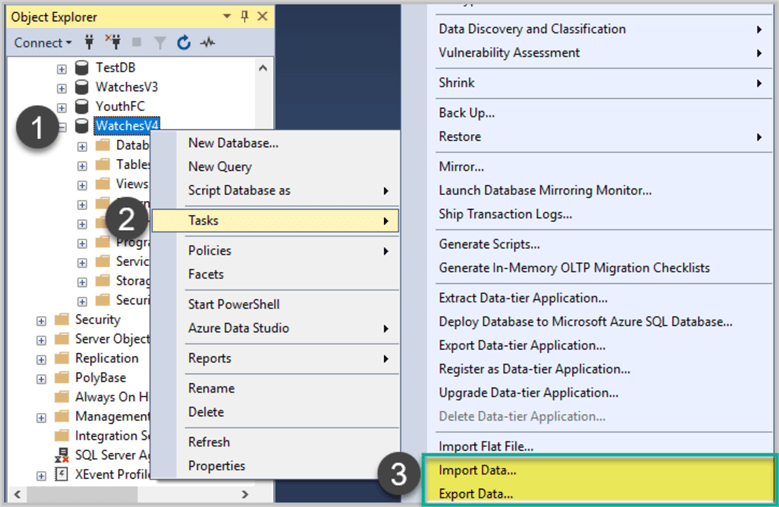
Bacpac is a compressed file with a proprietary SQL Server format ending in .bacpac. Personally, I've run into quite a few minor errors using this file to restore to an SQL Server in a different environment, so I don't recommend it if your two SQL Servers are on different environments.
SQL file is a file containing SQL statements you can run directly on the destination server. Note that this approach only works well for small data — importing this SQL file with large data can hang the server. Or you'll need to split it up or limit how many commands run concurrently to avoid issues.
Wrapping up
I'm sure there are still plenty of other ways to migrate data for SQL Server. The methods above are the ones I know or have tried myself for migrating SQL Server data. Hope this post brought you some value.
If you found this post useful, please give me an Upvote and a Follow to keep up with more posts. Have a nice day!
If you're running into technical challenges or need help with systems, DevOps tools, I'm confident I can help. Get in touch at hoangviet.io.vn