
The options
- Rent a VPS
- Rent hosting
- Use ready-made services like Wordpress, Wix, 000webhost, etc.
- Use GitHub Pages, S3 (for static sites)
- ...
The options above all come with different pros and cons — a few main cons I can point out: the user needs a certain level of tech skill, the free resources given to users are fairly limited, and the configuration/deployment process is fiddly.
Today, in this post I'll walk you through a solution that makes deploying a web application simpler, addressing some of the weaknesses of the deployment methods above. You won't need any tech knowledge to easily deploy a personal blog website, portfolio, or landing page quickly and easily — by dragging and dropping!
Creating an account
The platform I use in this post is App Engine by BizflyCloud, a Platform as a Service that gives everyone a place to deploy applications in general and websites in particular. The first thing you need to use this tool is to create an account 😄 😄 😄
You can create an account here
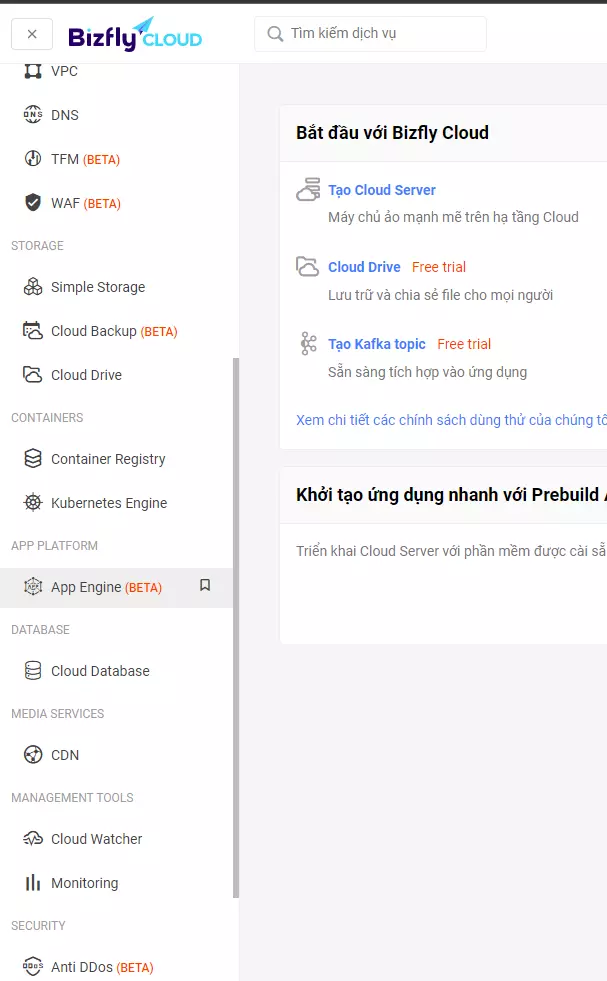
Once you've created an account successfully, go to the admin page and you'll find the App Engine service in the left-side menu.
Creating an App and Service
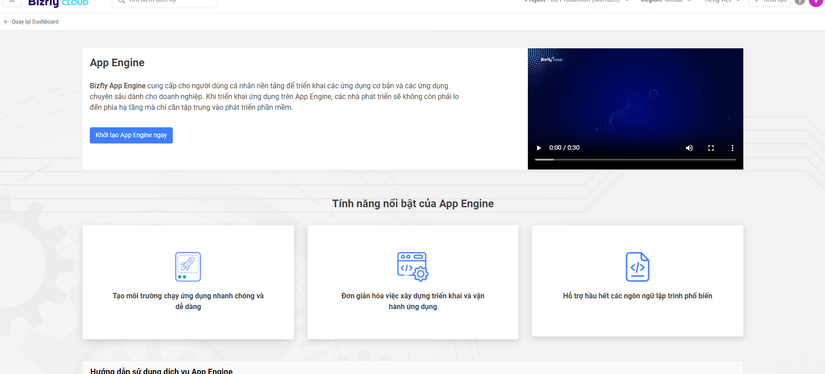
The first time you visit, you'll see an interface like below. Choose Initialize App Engine Now to create your first App. An App contains related services grouped together to make managing them easier, following a microservices model.
Once the App is created, you'll see there's no Service yet — let's continue by choosing the Create service button in the top-right corner
On this page you'll fill in the info needed to deploy your application, like: Name, physical config, website source, etc.
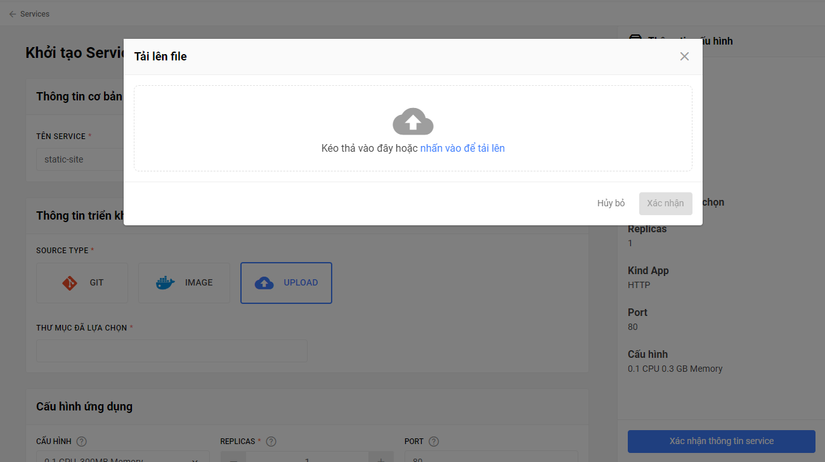
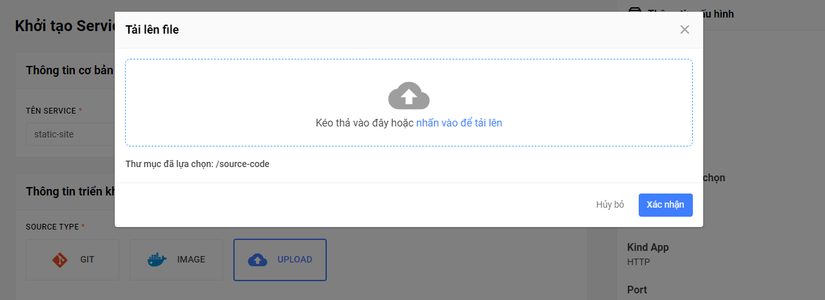
In the Deployment info section, choose UPLOAD as the Source type to deploy source code directly from your machine, or simply drag and drop the folder containing your code into the box.
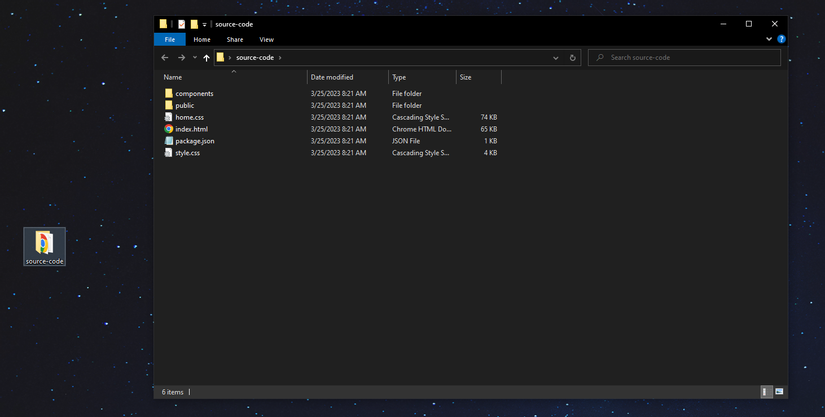
The source code folder on my machine is named source-code, and the files look like this
Once we select the folder, we hit Confirm Folder
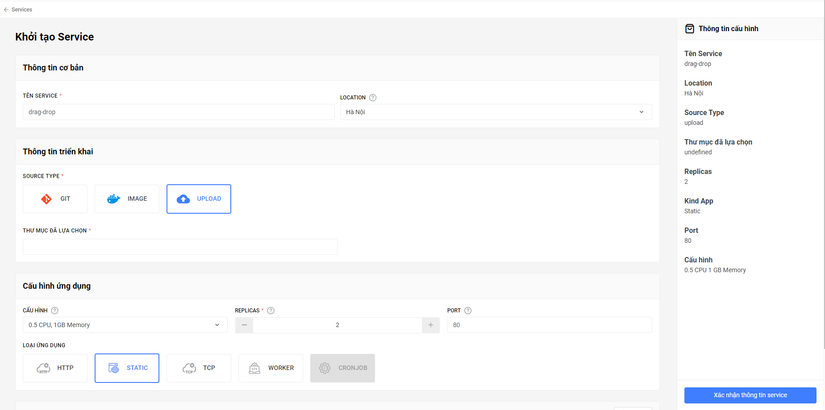
Application config starting at 0.5 CPU and 1GB Memory is already fairly strong.
To make sure the application runs stably, you can choose 2 Replicas (copies) or more.
We'll keep the Port as 80
For the application type, we'll choose Static since in this post I'm deploying a static website.
The final config will look like this. If the info is correct, hit Confirm Service Info to deploy the website!
The deployment process starts immediately.
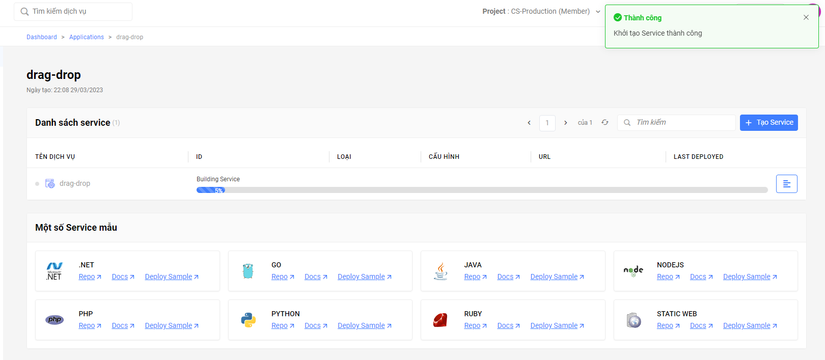
In under 2 minutes, the website is online!
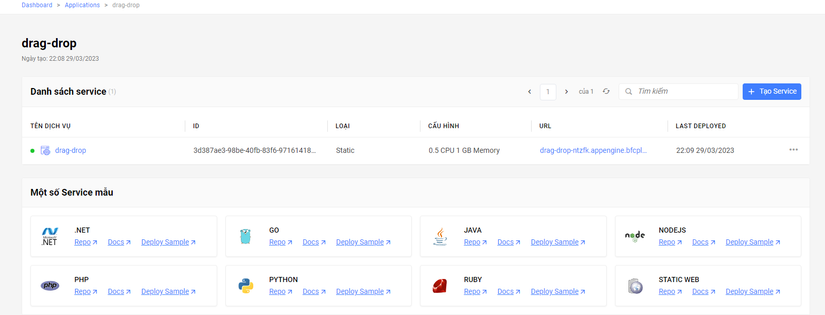
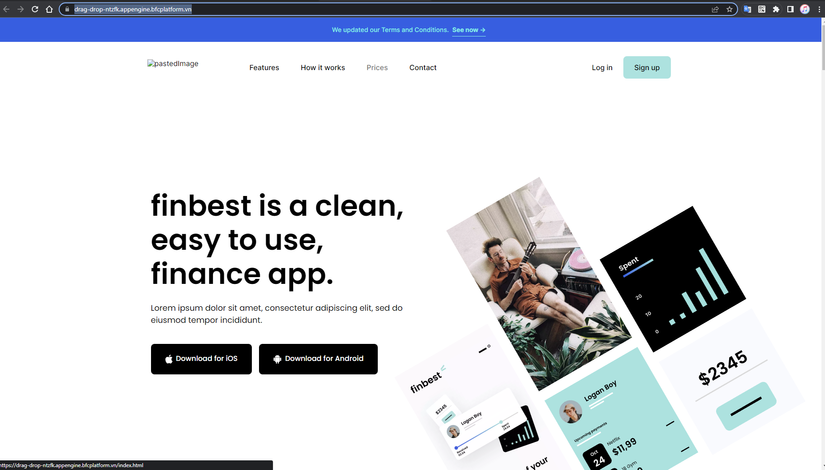
The system returns a link for you to access the website. Here's mine: drag-drop-ntzfk.appengine.bfcplatform.vn
You can add your own domain via the Domain feature! The system will provide a free SSL/TLS certificate for you.
Wrapping up
Hope this post gave you another option for deploying your own websites! Wishing you success! Upvote and Follow me to catch more posts.
Bizfly Cloud App Engine is a product my team and I are developing, currently offering a free trial for everyone, so if you have any feedback or need help you can message me on Telegram @HoangViet12! Thank you all.